Holiday hours on Google: what contractors should set before Thanksgiving 2026
How to set Google Business Profile special hours and Local Services Ads schedules for Thanksgiving, Christmas and New Year's, with a worked example schedule, the rules that trip shops up, and a holiday phone checklist.
By Rivet Editorial Team · · 6 min read
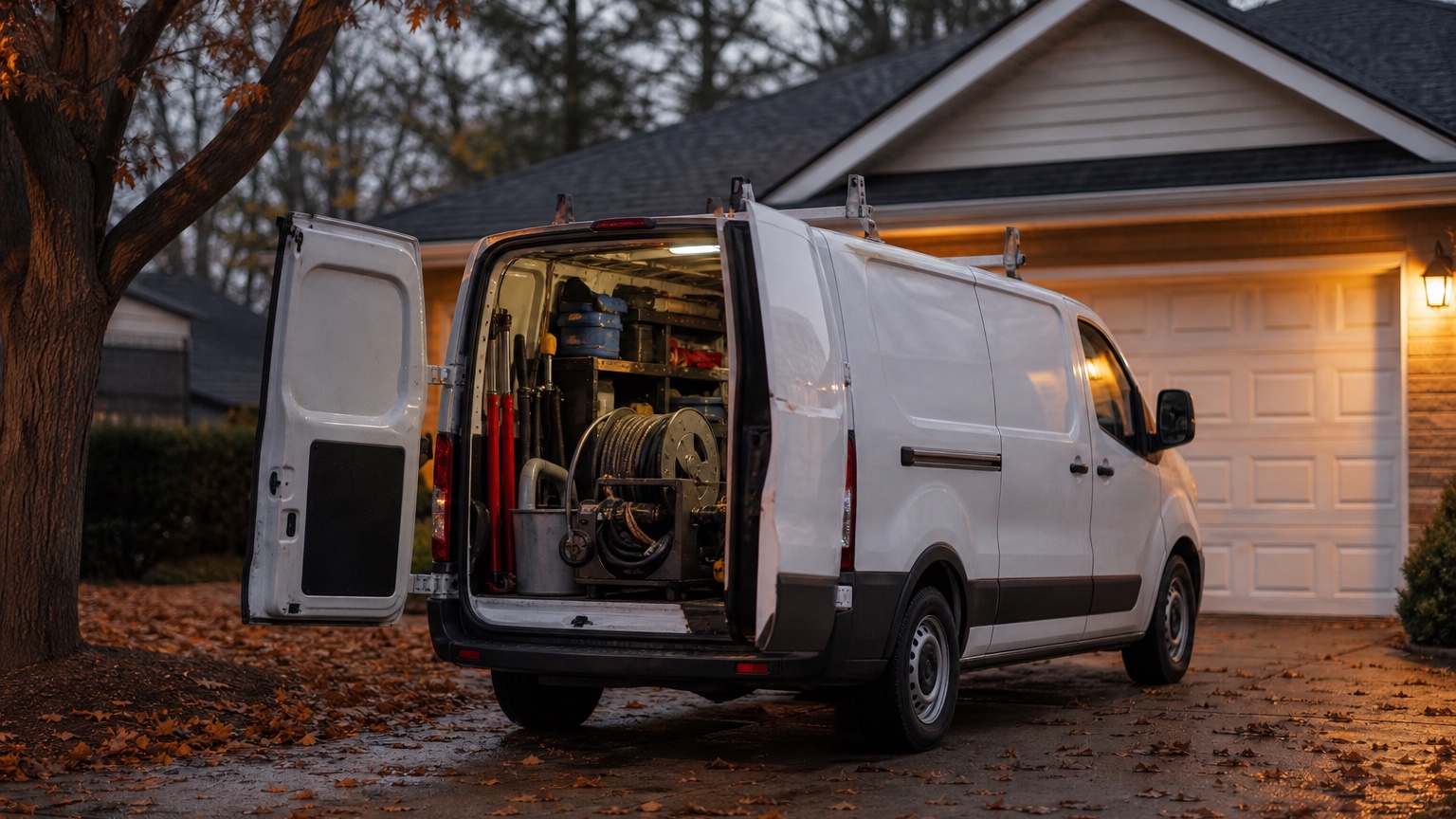
Set your holiday hours in Google Business Profile now, before Thanksgiving on Thursday, November 26. Use Special hours for each holiday, confirm the days you stay open on your normal schedule too, and make your Local Services Ads schedule match what your phones can actually handle. That takes about 15 minutes and prevents the worst holiday outcome for a service shop: a homeowner with a backed-up sink calls, nobody answers, and they call the next listing.
The stakes are real. Roto-Rooter says it gets about 50% more service calls on the day after Thanksgiving than on an average Friday, and that calls over the Thursday-to-Sunday holiday weekend run about 21% above a typical Thursday-to-Sunday stretch. The jobs it lists are the ones every plumbing and drain shop knows: kitchen sinks, garbage disposals, main sewer lines and toilets. Busy days are when bad holiday hours cost you the most.
The holiday dates to set for 2026
Here are the dates most shops need, according to the federal holiday calendar published by the US Office of Personnel Management:
- Thanksgiving: Thursday, November 26, 2026
- Christmas Day: Friday, December 25, 2026
- New Year's Day: Friday, January 1, 2027
Christmas and New Year's both fall on a Friday this year. That gives you two three-day weekends back to back. If you close on Christmas Eve (Thursday, December 24) or New Year's Eve (Thursday, December 31), you could be dark for four days in a row. Decide that now and put it in Google, rather than leaving it to whoever is on the phone that week.
How special hours work in Google Business Profile
Special hours are Google's tool for temporary changes like holidays. They let you change one day without touching your regular weekly hours. Google's help page explains how they work, and a few of the details catch shops out.
The steps
- Open your Business Profile and select Edit profile, then Hours.
- Next to Special hours, select Edit.
- Pick a date. You can confirm a holiday Google suggests, add a custom date, or edit one you already set.
- Enter the hours, or check the Closed box if you are not working that day.
- Select Save.
The rules that trip shops up
- Special hours only show if your profile is set to "Open with main hours." If you never entered regular hours, your holiday hours won't appear.
- Confirm the holidays you're open, too. Google recommends confirming holiday hours even when they match your regular hours. If you are working Black Friday on your normal schedule, say so.
- Hours that run past midnight have to be split in two. If you set a late-night block that runs into the next day, Google ignores your regular hours for that next day unless you add them back. Check the following day after you save.
- A day can have more than one block of hours. Use More, then Add hours. That helps if you take calls in the morning, close for dinner, and come back on call in the evening.
- Special hours cover closures of up to 6 days in a row. If you will be closed 7 days or more, Google says to mark the business Temporarily closed instead. Most contractors should never do this in winter, but it matters for a shop that shuts down between Christmas and New Year's.
- Watch out for bulk uploads. If you manage several locations with Google's spreadsheet, a blank column, or a column with a header and nothing under it, erases what is already in the profile for that column.
What hours should a contractor actually post?
Google's guidelines ask for your regular "customer-facing hours of operation." So post the hours when a customer can actually reach someone, not the hours you hope to be reachable. Three common setups:
Closed for the holiday
Set the day to Closed. This is honest and simple. The cost: on the day after Thanksgiving, when Roto-Rooter reports about 50% more calls than a normal Friday, a homeowner who sees "Closed" will scroll to the next shop. If you close, close on Thanksgiving itself and think hard before closing Friday.
Short day
Set reduced hours, for example 8:00 AM to 2:00 PM on Black Friday. Your listing shows you as open while you are open, and you don't promise service you can't staff.
Emergency coverage
If you run a real on-call rotation, post the hours your on-call line is answered. Only post them if a person or a system will answer every call, take the address and the problem, and get it to your on-call tech. A listing that says "Open" over a phone that goes to a full voicemail box is worse than a listing that says "Closed."
A worked example: a 6-truck plumbing and drain shop
- Wed Nov 25: regular hours, confirmed in Special hours
- Thu Nov 26 (Thanksgiving): 10:00 AM to 4:00 PM, emergency calls only, one on-call tech
- Fri Nov 27: regular hours, confirmed, with two extra trucks on standby for drain calls
- Thu Dec 24: 7:00 AM to 12:00 PM
- Fri Dec 25: closed, or on-call hours if you staff them
- Thu Dec 31: 7:00 AM to 2:00 PM
- Fri Jan 1: closed, or on-call hours if you staff them
Save all of them now. Then check the profile on your phone the week of each holiday to make sure they show correctly.
Line up Local Services Ads with your phones
If you run Google Local Services Ads, you are paying for calls, so your ad schedule matters more than your listing does. Google's help page gives you three schedule options:
- All day: the ad runs 24 hours a day, 7 days a week. This is the default.
- Only during my business hours: the ad runs during the hours in your LSA "Business hours" field.
- Custom hours: you choose the days and times.
Google describes the schedule as the way to run your ad "when you can respond to customer calls in a timely manner." Outside your scheduled hours, Google says a free version of your listing may still show.
If you never changed the default and your ad is still on All day and nobody picks up on Christmas morning, you are paying to send leads to voicemail. Before Thanksgiving, open your LSA account and either:
- switch to Custom hours for the holiday weeks and match them to your on-call schedule, or
- keep All day only if every call will actually be answered.
Your Business Profile hours and your LSA business hours are separate fields in separate tools. Update both.
The holiday phone checklist
Your Google hours promise one thing; your phone has to deliver it. Run through this the week before Thanksgiving:
- Write down who answers, and when, for every holiday day. Give it to the office and to every tech on call.
- Record a holiday greeting that matches your Google hours exactly. Here's a script you can use:
"Thanks for calling [Shop Name]. Our office is closed for Thanksgiving, but we're taking emergency calls today. If you have water coming in where it shouldn't, a sewage backup, or no heat, stay on the line or leave your name, address and the problem, and our on-call tech will call you back within [X] minutes. For anything else, we're back at 7 AM Friday."
- Empty the voicemail box. Holiday callers hang up on a full mailbox.
- Call your own number from a cell phone after hours on the day before each holiday, and listen to what a customer hears.
- Set a callback target and keep it. If the greeting says 30 minutes, the on-call tech needs the alerts on their phone, not on the office desk.
- Search for your shop on Google on the holiday itself and look at what your listing says. Fix anything that's wrong while it still matters.
If your phones can't keep up
The day after Thanksgiving is a good test of your phone coverage. If you know you can't staff the phones for every holiday call, cover the gap before you lose the work. Some shops use an answering service. Some rotate a dispatcher. Some use an AI receptionist such as Rivet, which answers calls 24/7, tells callers it is an AI, books jobs onto your calendar and sends you the summary. Whatever you choose, make sure the hours on Google match what your phone actually does.
Sources
Keep reading
Asking for Google reviews in 2026: what the FTC and Google allow, with scripts for contractors
Discounts for reviews, happy-customer-only surveys and tech review contests break Google's rules, and some cross the FTC's. Here's where each rulebook draws the line, plus a compliant review process, scripts and a 7-question audit.
Nov 16, 2026 · 8 min read
Holiday lights tripping the GFCI: an electrician's phone script and the fixes worth quoting
Most holiday-light trip calls are a GFCI doing its job. Here is a 90-second phone script with red flags, an on-site checklist built on the NEC outdoor receptacle rules, and the three fixes to quote.
Nov 21, 2026 · 8 min read
CO alarm calls: what your CSR should say in the first minute, and what the tech checks after
A word-for-word phone script for carbon monoxide alarm calls, a fast way to tell an alarm from a low-battery chirp, and the whole-house checklist your tech should run once the fire department clears the home.
Nov 21, 2026 · 7 min read